Table of content
Use Cases
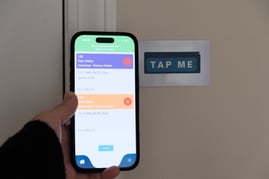
NFC tags provide a way to quickly and easily identify a location.
But further, Speak2 has integrated tags into our workflows so that you can leverage NFC tags as part of the daily flow of your day.
Staff Use Cases
Record Apartment Visit
When staff visits a resident apartment, they can tap the NFC tag and it will log their visit. It will also open up any requests and allow for staff to easily close them and record any notes.
Start an Event
If there is an activity planned at a location, staff can tap the NFC tag and start that activity in the system. The app will automatically open the attendance screen for that event. This enables residents to tap their tag and mark themselves as attended.
Resident Use Cases
Record Location
Residents can tap any NFC tag and it will update their location in multiple places. Staff can see their latest location in the web or staff app. The resident feed is updated so family can see changes in family app, and residents can see on the Neighbors web or app. This also behaves as a check in/out to the community feature.
Mark Attendance
When a resident attends an activity, they can tap their phone and it will mark them as attended for that event.
Obtain NFC tags
Any standard NFC tag can be used. See below for recommended options tested by Speak2 and proven easy to use and effective. We recommend that you determine the aesthetic of how these will appear in your community. These should stand out enough that users can see them.
Tags are programmed for use by EITHER staff or residents. Residents tap different tags than staff. Keep that in mind when determining which to purchase for each group.
E.g., staff may have smaller, white tags while residents may require larger gold tags.
Do not place the tags on metal.
Program NFC Tags
You will program the NFC tags to be associated with one (1) specific location using the Speak2 Staff app.
|
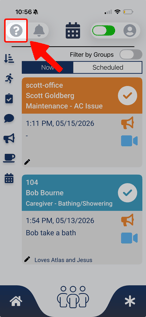
1. Open the Speak2 Staff app and navigate the Question Mark top left corner. |
 |
| 2. Select "NFC Configuration" | 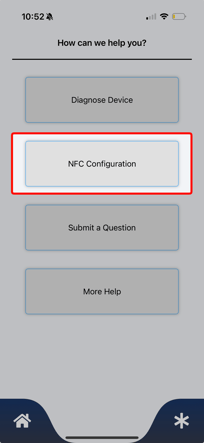 |
|
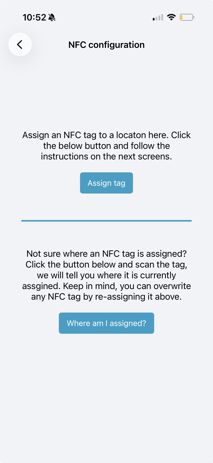
3. You will be presented with two (2) options. You can scan an existing NFC to see it's configuration or you can "Assign tag" a new configuration to a NFC tag. 3a. If you tap "Where am I assigned" it will populate the type of NFC tag it is (Staff or Resident) and the Room or Location. Use this to see where a tag is programmed! |
 |
|
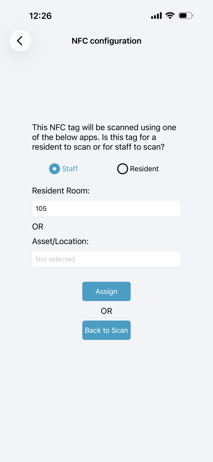
4. To configure an NFC tag for a location, tap the "Assign" button. Then select who will be tapping the NFC tag - Staff or Resident - and where the tag will be placed - a resident room or location or asset. That's it. Once you tap "Assign" you will get an indication from the app that it was successful or not. If it was not successful, simply try again by moving the phone away from, and then back to, the NFC tag. |
|
| As an example, in this screenshot we choose to assign this for Staff to use to identify Resident Room 108. | 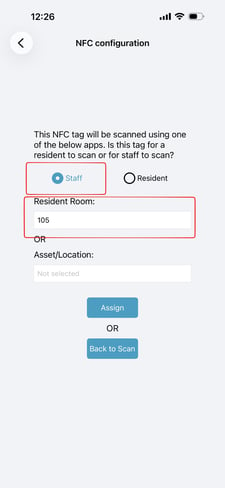
|
Wondering where your NFC tag is placed?
Click Question Mark > NFC Configuration > Scan
Place your Tags
Tag placement depends on your community layout and how staff and residents will use them. Exact locations are determined by the community. General guidelines:
- Place tags where people can reach them. Often the person placing the tag is taller than a resident using a tag.
- Place the tags where they will not get wet or damaged by the environment.
- There is no issue in throwing a tag away and replacing it with a new one. Tags are relatively affordable.
- Tags must be visible and accessible by a phone to work properly.
STAFF: Record Apartment Visit
Staff can record their apartment visit by using NFC.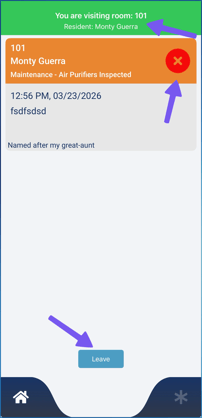
Step 1: Tap the staff tag in the resident location.
On a iPhone, you will be prompted to open Speak2. If you are on Android, the app will open.
Step 2: You will see a screen with:
A green banner on top
Any open requests for that resident (Close if appropriate)
The "Leave" button in bottom center.If you tap "Leave", this will prompt for notes and close your session.
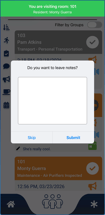
If you closed the Speak2 Staff app while you were visiting, close out the session by tapping the NFC tag again.
This will bring the screen back and open the Notes section so you can enter notes or skip and leave the apartment.
STAFF: Start an Event
A simple yet powerful tool for Activities teams. When staff enters a location where an event is scheduled, they can tap the NFC tag , "Start" the event and enable residents to tap their tag to log their attendance.
Step 1: When staff enters a location with a scheduled event, tap the NFC tag.
Step 2: It will prompt you to "Start" the event. Start it!
Step 3: Have residents tap their tag to log their attendance for the event.
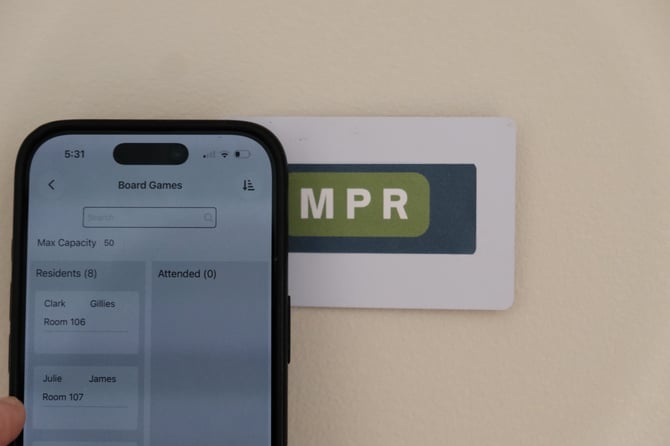
Easily take attendance! Tap your NFC tag in the room with the event, start it and then have each resident tap when they enter. It'll mark them as attended!
RESIDENT: Record Location
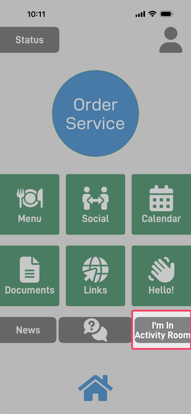 Knowing where residents are - and having a log of their movements, especially in and out of their apartment - helps staff respond quickly and effectively.
Residents with a smartphone and the Speak2 Neighbors app can log their location instantly by tapping any NFC tag in their apartment or elsewhere in the community.
Their current location then appears in the Neighbors app, feed, notes and reports.
If residents do not have the Neighbors app, program them a NFC tag and they can tap that to mark their location.
RESIDENT: Attendance
A resident can mark themselves as attending an event. This requires that staff has "started" the event in Speak2 using the Staff app or Alexa.
To mark themselves as attended, the resident simply taps the resident NFC tag at the location.
If residents do not have the Neighbors app, program them a NFC tag and they can tap that to take attendance.