Table of content
Social Posts for Staff and Residents
Speak2 has created a "social post" and comments capability. This feature enables staff and residents to post updates that are visible to each other, or only to staff. Staff and residents develop close connections, and this is a way for people to share news.
Staff
There is value in staff being able to community about their day, updates about residents, or anything else they want to share with each other via the portal or staff app. Staff have the option to share their posts with residents by checking a "share with residents" checkbox. For example, staff can say happy birthday to a resident or tell all the residents about some good news they want to share.
Residents
Residents want more social capabilities and Posts enables them to have social media style capabilities, sharing personal updates, images or news.
Turning On Social Posts
Posts are available to staff at all times.
You can determine if you want residents to have social post capabilities by request to support@speak2family.com. Simply request to have this turned on/off - or if you'd like to see a demo.
Posts for Staff on the Web
To create a post, see the Posts tab on the home page of the portal and simply view the existing posts, or click create post.
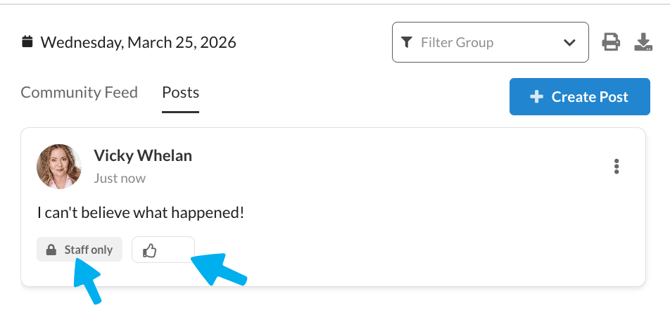
Note, you can see if a Post is for staff or both staff and resident view, and you can "Like" a post. If you hover over the Like button you can see who liked it.
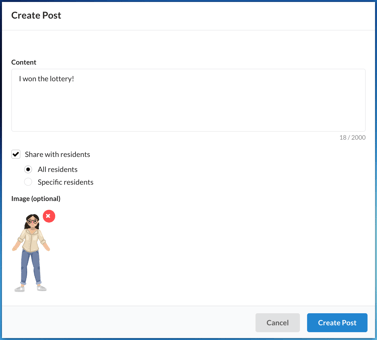
To create a post, click Create Post and fill in the details. Note, you can select to make your post visible to residents, and you can even choose which residents or groups should see it. For example, maybe you want to post something directly to a specific individual, or something to the Pickleball group. (pretty cool):
Posts for Staff in the Staff App
You may not have known, but if you swipe left in the Staff app, you see the Community feed. Well, even better, now you can see Posts.
Swipe left and the post are visible. And you can create a post similar to the web above!
Posts for Residents
Residents access Social features by clicking the Social box on the web or app.
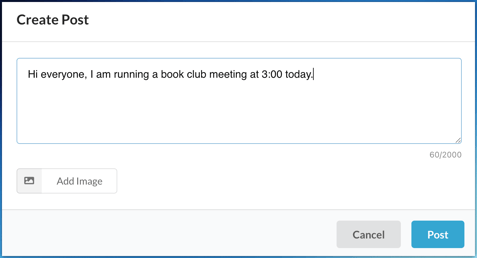
The Posts feed is displayed prominently in the center of the page. Residents can click "Create Post" and contribute their own social content.
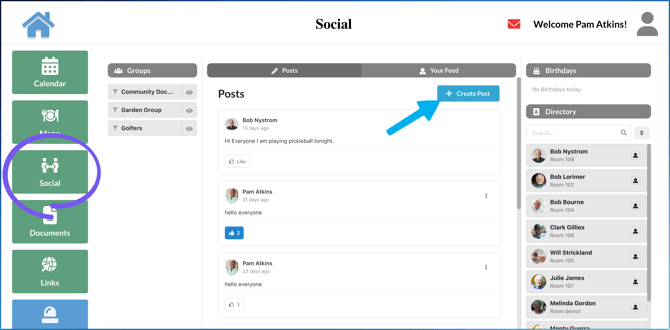
Create a post:
Posts in the Neighbors app
Posts in the Neighbors app is similar to the web. Navigate to Social, then view the Posts tab. View or Create posts here.
It is important to know that if a resident is viewing or active in a group, then their post will only go to the members of that group. E.g., if a resident has clicked the "Gardening" group, and the click "Create Post" - that post will only be visible in the Gardening group.
Residents cannot choose who sees their posts. Posts made by residents are viewed by all residents, or by members of the group it is posted to.
Resident Approvals
The reality is that there may be residents that require an approval process before their social posts are visible to the community. Not to worry, Speak2 has an approval process. Hre are the steps.
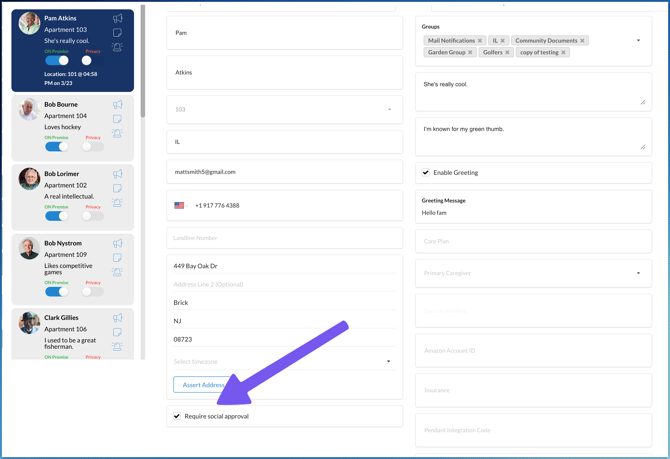
- Navigate to resident record
- Go to the "About" tab
- In the bottom left is a "Requires Social Approval" checkbox. If this is checked, the residents social posts will go to an approval cue for staff to review.
Reviewing Resident Social Posts
On the portal home page, there is an approval button in the top right navigation. There will be a badge with a number of pending approvals.
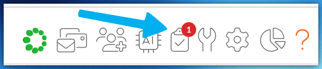
- Click the approvals button
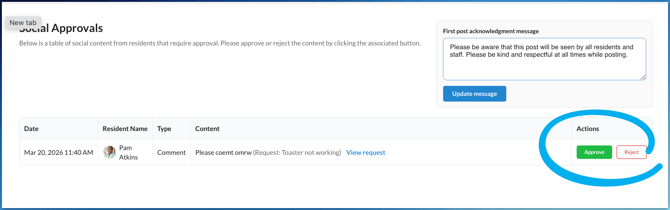
- View the list of posts needing approval
- Determine the appropriate action
Terms and Conditions
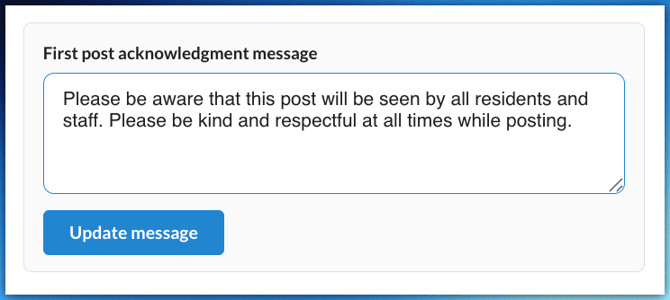
We highly recommend providing an agreement or some sort of policy regarding posts. We provide a very simple approval text to start.
Currently, when a staff or resident create their first social post, they must agree to the Terms. If they do not, their post is rejected. Nobody can post unless they accept the terms text.