
Table of content
Simple Alexa Signage
Design custom slides in Prntyr. You can upload an image or use a template. Echo Show 8 screens are 960x600 px.
 Turn on simple content to automatically show on your Alexa devices.
Each night, we will create a slide with your content. It will rotate on your Alexas and TVs if selected.
You can select a Group to send simple signage to.
View or preview Alexa slides in the Alexa Signage tab.
Simple signage is created overnight. If you need to make a change on the day it is displayed, you must delete the original slide. Slides created int his screen are not editable. They must be deleted and recreated.
You cannot "edit" an existing slide that has been sent to Alexa.
- You will create a NEW slide by entering the correct information and clicking "Save"
- DELETE the old slide if it is no longer correct.
This is an Amazon limitation.
Automate simple Alexa signage
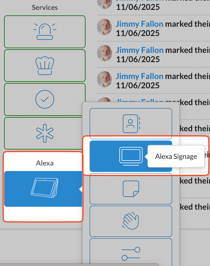
- Click Alexa > Signage on the left hand navigation
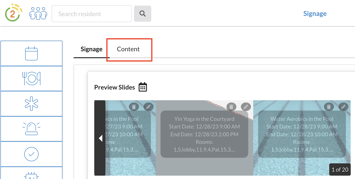
- Click the Content tab on the top
- Toggle the content types to "on" for content you want created each day.
- If the toggle is blue, it is on and will create new signage each day.
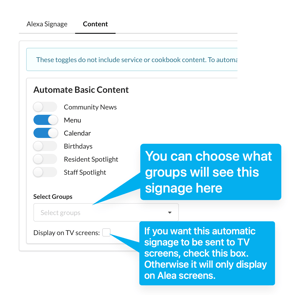
- If the toggle is blue, it is on and will create new signage each day.
- Select specific groups to receive this Alexa signage.
- Check "Display on TV screens" to display these slides on your TV screens.
Alexa signage dimensions are not ideal for TV screens. Images may distort on TV screens as it resizes.
Preview Alexa Signage
- Click Alexa > Alexa Signage on the left hand navigation
- Click the calendar icon to Preview slides
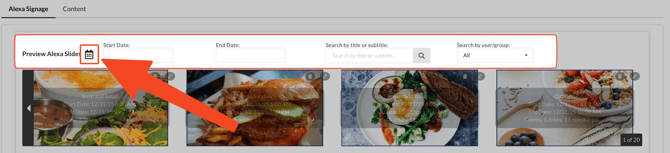
- Filter by a date, group, user or search for a title
Create simple signage for Alexa
Simple Signage is limited. You cannot change font, placement or required fields.
If you want more customizations, check out templates and custom Alexa slides in Prntyr.
- Navigate to Signage on the left hand Navigation
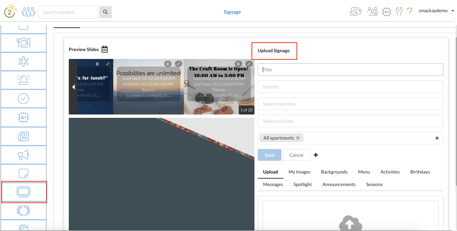
- To make edits, Click the Edit pencil icon in the top right corner of the image.
- You can now "edit" the existing slide and save it as a new slide.
-
- The existing slide will still be displayed on Alexa. You must delete the existing slide for it to stop displaying on Alexa. This is an Amazon limitation.
- To create signage, add the Title, subtitle, recipients, start time, end time and select a photo.
- Signage is sent to Alexas only from this screen. Check the "Display on TV screens" if you want to display this on TV screens.
You cannot "edit" an existing slide that has been sent to Alexa.
- You will create a NEW slide by editing the fields and clicking "Save"
- DELETE the slide if it is no longer correct.
Create Prntyr Signage on Alexa from a template
- Click Prntyr on the left hand navigation
- It will bring a new webpage. If not automatically logged in, log in with your Speak2 staff information.
- Click the "Alexa Slides" button (it will turn maroon)
- Scroll and select which design you'd like to use. Click the photo to open it.
- Make edits as you like. You can save the template for yourself, or share it with your organization.
- To send this to Alexa devices, go to the top right corner, click Share > Create Alexa Slide.
- Select your recipients and date/time and click Submit.
Create Alexa signage with an image
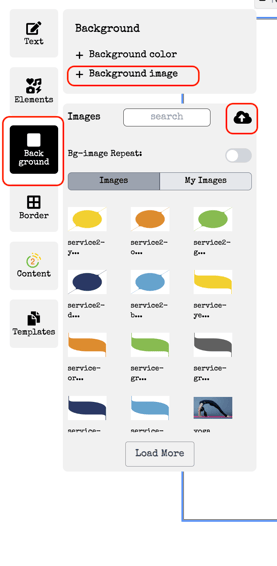 If you have an image from Canva or another design tool, you can upload it as a background image.
- Click Prntyr on the left hand navigation
- Click "Slides" on the top navigation
- Confirm you have the correct signage size (Echo Show 8 or Echo Show 15)
- Select "Background" and then "Background Image" and select the image.
- Change the transparency under "Background color" as you'd like
- Click "Share" on the top right corner of your screen and select "Create Alexa Slide".
- Select the times and dates and submit.
Echo Show 8's dimensions are 960x600 px.