
Table of content
How to check in
On Alexa
- "Alexa, checking in"
- "Alexa, good morning"
- "Alexa, start my day"
- Each will time stamp and read off any community content and time stamp.
- If a resident asks for the calendar or menu, it will also mark them as checked in.
On the Neighbors App
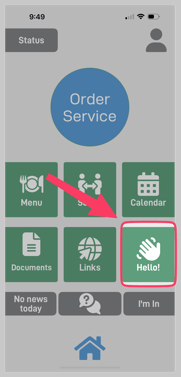
- Open the Neighbors app
- Click "Hello" on the homepage
- This will mark the resident as Checked in and send Greeting message (if enabled)
Download a cheat sheet.
.png?width=115&height=149&name=impact-checkin-hello%20(1).png) Use the "Check in and Greeting" Impact workshop
Use the "Check in and Greeting" Impact workshop
Add this workshop as a event in your Activity calendar. Sync "Impact workshop: Checkin" from Universal Services in the marketplace.
Greeting Message
- Go to the Resident Record
- It is off by default. Click the checkmark on "Enable Greeting"
- Customize the Greeting Message.
- Click "Save Resident"
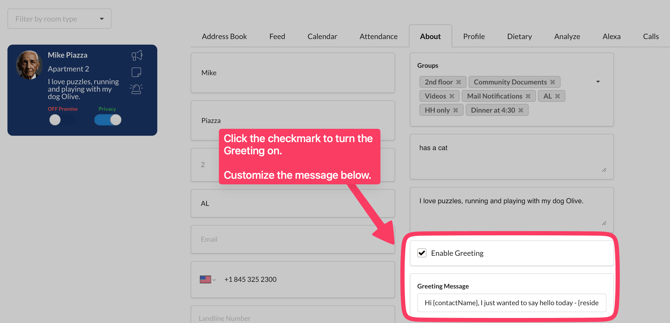
When you click "Hello" it checks you in and send a Greeting message to contacts that have "Announcements" turned on.
Check in on the Web
- Click Checkin on the left hand navigation
- Those who did not check in are in the "Not Checked In" column. Anyone in the "Checked In" has checked in via Alexa or the app.
- Drag and drop to move someone to a column.
- You will see their name, apartment number and time stamp
- Sort by First Name, Last Name or Apartment number
Create a group and add residents who only opt in or participate in check (e.g. IL residents only). You can favorite and set that group, so you only see it each time.
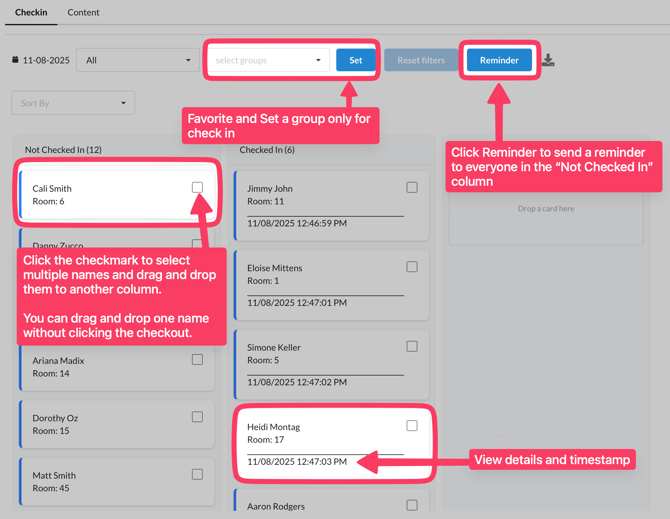
Click "Reminder" to send a reminder to everyone in the "Not checked in" column.
They'll receive an announcement that they have not checked in yet.
What content is shared during check in?
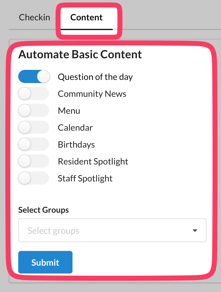
- Click the "Content" tab to turn on/off community content.
- When toggled on (blue), Alexa will ask if they want to hear this community information.
- They can say yes or no