
Table of content
Alexa Diagnosis
View the current status. Use this to see if where your device is - assigned to a room or not assigned. You can move or assign a device.
Move a Device
| Staff app | Staff Web |
|
|
Devices take at least 15 minutes to move. Keep the device plugged in! You'll receive a Notification if using the Staff app or view the status in the web.
Reset, Register or Add a New Device
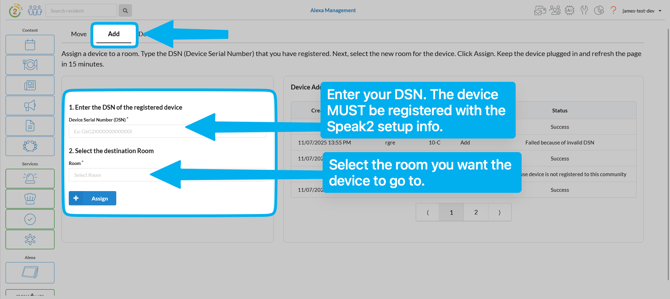
Use your community's specific WiFi information and the setup@speak2software.com login. To add a new device, follow these steps:
Go to Alexa > Alexa Diagnosis > Enter the DSN to view the status. We'll tell you if you can move the device or if needs to be setup.
- Register your device. Follow the steps here:
- Print labels for your devices - see steps here.
- Enter the DSN in the search box
- Click Search
- Select the Room
- Click Assign
To check if Alexa is assigned or programmed:
- Open the Staff app > click the Question Mark > Alexa Diagnosis > Scan the QR code
- Ask "Alexa, what room am I in?"
- Enter the DSN on the Staff web under Alexa > Alexa Diagnosis
If Alexa responds with a room number, it's assigned. If she does not, the device needs to be assigned by selecting a room in the app or web.
What room is this Alexa assigned to?
On the Staff App:
- Open the Speak2 Staff app
- Click Question Mark top left corner
- Click Diagnosis Alexa
- Scan the QR code of the device and the room will display. If no room number, the device is not assigned. Send to support@speak2family.com to assign.
- Move the device to a new room if needed.
On Alexa:
Say, "Alexa, what room am I in?" and Alexa will tell you the room number.
If you're still not sure, email support@speak2family.com with the 3 digit code or the device serial number (DSN) on the bottom of the device.
Setting up Alexa FAQs
- I'm setting up an Alexa Dot, but it won't connect to the app. Why?
If an Echo Dot does not connect on the Alexa app, the device is most likely bricked (broken). We suggest to power cycle (unplug and replug the device) and check to make sure your Alexa app is on the latest version. If this does not work, try another device. - What email and password do I use to login on the Alexa?
Use the specific Speak2 email and password. You must use this to register the device. Email support@speak2family.com if you need the login information. - How do I reset an Echo Show?
Speak2 must deregister the device on the backend. If you wish to release a device from your community, it will no longer function as a community managed device and must be set up with another account. Email support@speak2family.com if you want to deregister a device. - How do I print a label?
Follow the steps here. - How do I program an Alexa?
To see if a device needs to be setup or assigned, enter the DSN under Alexa Diagnosis. We'll tell you if it needs to be set up, it is currently assigned and to which room.